Information &
prices for tenants
new team memBer?
If you have a new co-worker, thesis student, or intern joining, please send us their information via the form link below at least 3 business days before the start date.
introduction tour
If you are new here at Stena Center please take our introduction tour. This is mandatory for all people using our facilities.
TUESDAYS AT 10.00 (at the front desk)
Other
Lost accesscard
300 SEK
Lost office key
500 SEK
Extra desk
You need an extra desk including a chair in your office.
500 SEK/MONTH
Guest card and extra key
For your collaborators such as researchers, board members, etc., who have their workplace elsewhere. This includes an access card to Stena Center, Monday to Friday from 08:00 to 17:00 maximum 6 h/week, and, if desired, a key to your office. No community acitivities included such as Thursday breakfast, after work etc. Cost: 300 SEK/month.
300 SEK/MONTH
Printer
Here are the instructions for using the ‘Stena FollowMe’ printer.
EXPAND YOUR TEAM – but short on space?
Applies if you have employees, temporary staff, thesis workers, interns, or similar, which means you have more people in your office than stated in the agreement. The person will receive a key to your office, an access card to Stena Center, 4 hours of meeting room booking, access to the printer, the weekly newsletter, and invitations to community activities. If you also need an extra desk, see the price beside.
1500 SEK/MONTH
How to install the printer
how do i get an account?
1
Once we have created an account for you, you will receive an email from the printing service MyQ Roger.
Verify your email address and create your own unique password for the service. Save it for later. You will need this to log in to the app on your computer.
Once your email address has been verified, you will receive a new email with a unique PIN code that you use to log in to the physical printer. Save this for later.
MyQ Roger for WINDOWS
2
Download the folder “MyQ Roger PC” to your computer. Click on the downloaded file “MyQ Roger Client-setup” file to start the installation.
When the installation is complete, a MyQ Roger icon will appear at the bottom to the right on Windows
MyQ Roger for mac
3
Download the folder “MyQ Roger Mac” to your computer. NOTE! Both files MUST be in the same folder/location on your computer before starting the installation.
Click on the “MyQ Roger Client 2.4.2.114(bundledDrivers)_1_eu.pkg” file to start the installation.
When the installation is complete, a MyQ Roger icon icon will appear at in the upper right corner.
how do i sign in?
4
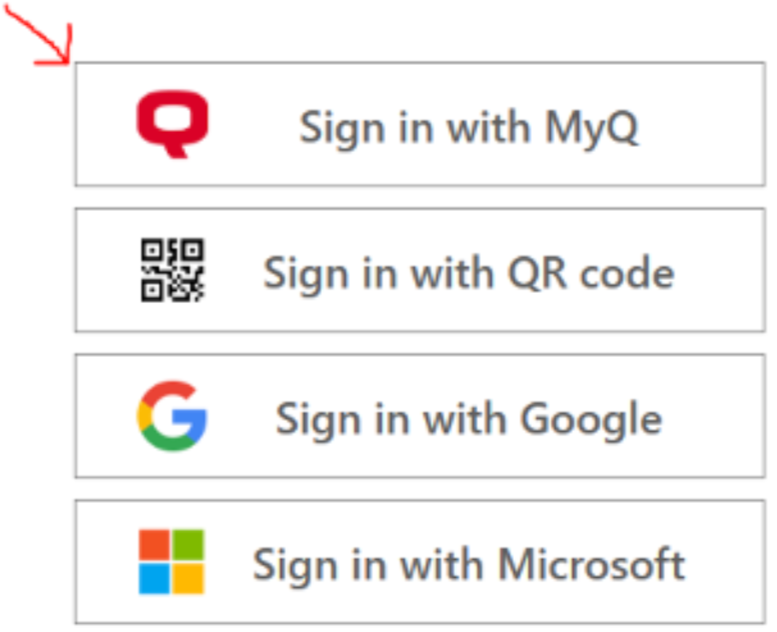
Click on the icon “ Sign in with MyQ”
Sign in to your MyQ Roger account using the password you saved when you created your account.
The new printer called “Stena FollowMe” should now appear as an option when you print.
IMPORTANT!
To be able to print you must:
Be logged in to “MyQ account”
Keep your computer active (don't close the laptop lid)
Be connected to the Stena Center member WiFi (NOT guest WiFi)
new printer installed
5
How do I collect my printout?
6
Go to the printer by the post boxes.
Log in using only your PIN code. Leave the username field empty.
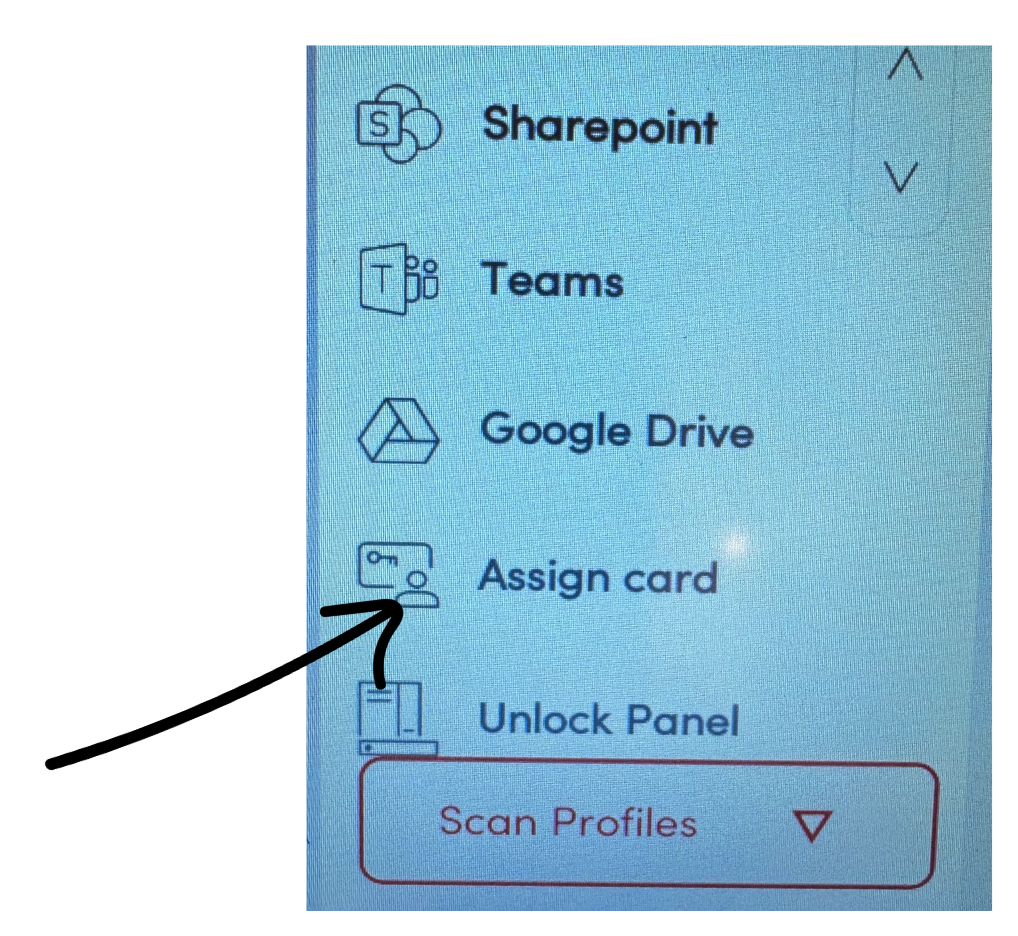
Link your access card:
Select “Assign card” and hold your card against the printer’s card reader.
Next time, just show your card.